Partner Servers
Looking For Group: Launching Arkheron’s Partner Servers
Find your community and play free November 30 - December 6
Our first Arkheron Partner Servers are getting ready for Early Access, and you and your friends are invited. These creators and gaming communities will be jumping into Arkheron together at launch, figuring out builds, finding teammates, and welcoming players who want to join them.
Last week, we introduced the program. Today, we’re sharing the participating servers and how to connect with them in-game. You can join communities that interest you, find open parties, and choose a server to represent in matches. And from November 30 through December 6, repping a participating Partner Server lets you keep playing for free after Opening Weekend.
Meet the communities
Maybe you already follow one of these creators but haven’t played with anyone from their Discord. Or you and your friends are looking for a larger group to learn Arkheron with. Our first partner servers are based around creator communities who are activating at launch, including Disguised Toast, HutchMF, and Aztecross. We’re adding more servers regularly, so make sure to check out the list here.
Connect your Discord Account
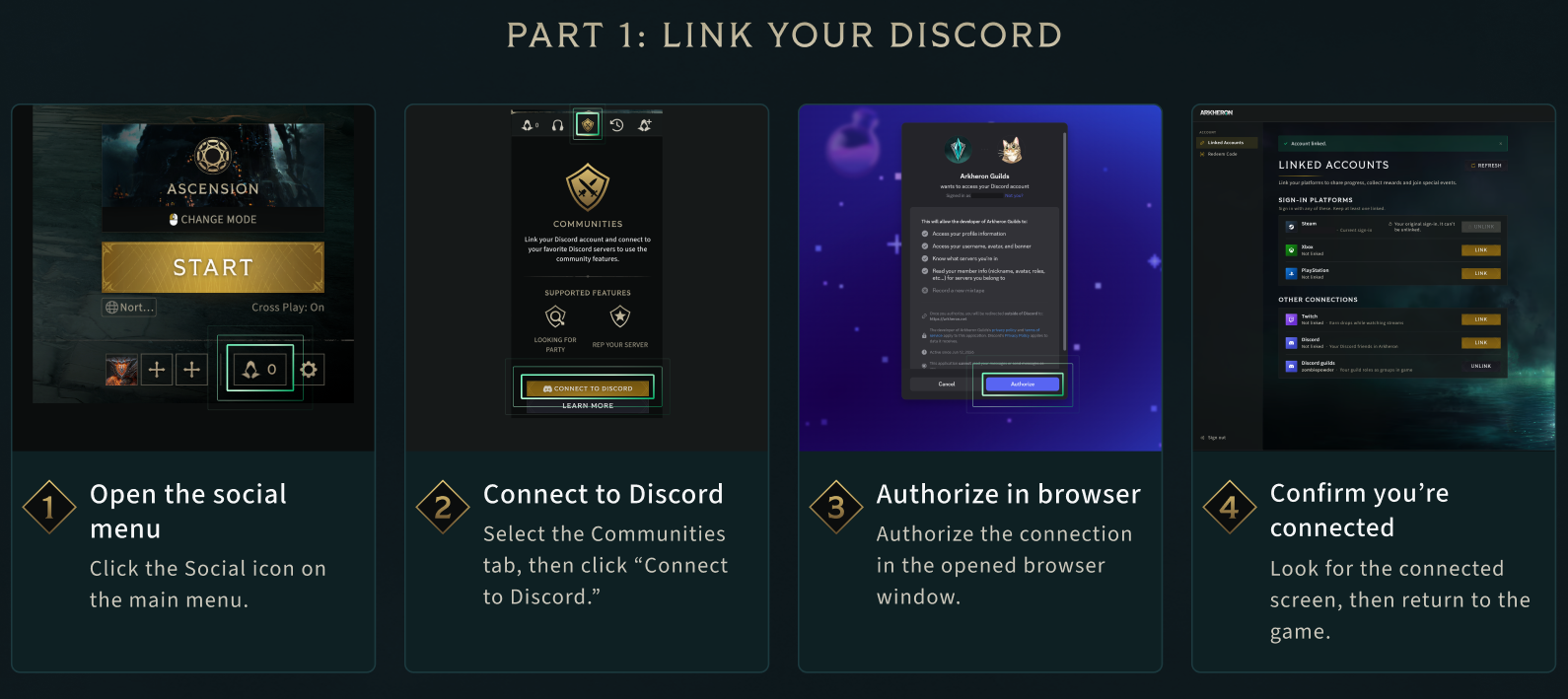
After you’ve joined some servers, you’re ready to connect them to Arkheron. Once you’re in-game:
Open the Social menu. Select the Social icon on the main menu.
Connect to Discord. Open the Communities tab, then select Connect to Discord.
Authorize in your browser. A browser window opens. Approve the connection there.
Return to Arkheron. Once the connection is confirmed, head back to the game.
You can now choose which Discord communities you want to play with in Arkheron.
Add your servers and rep your community
You can add multiple communities, including Partner Servers and the other Discord servers you already belong to.
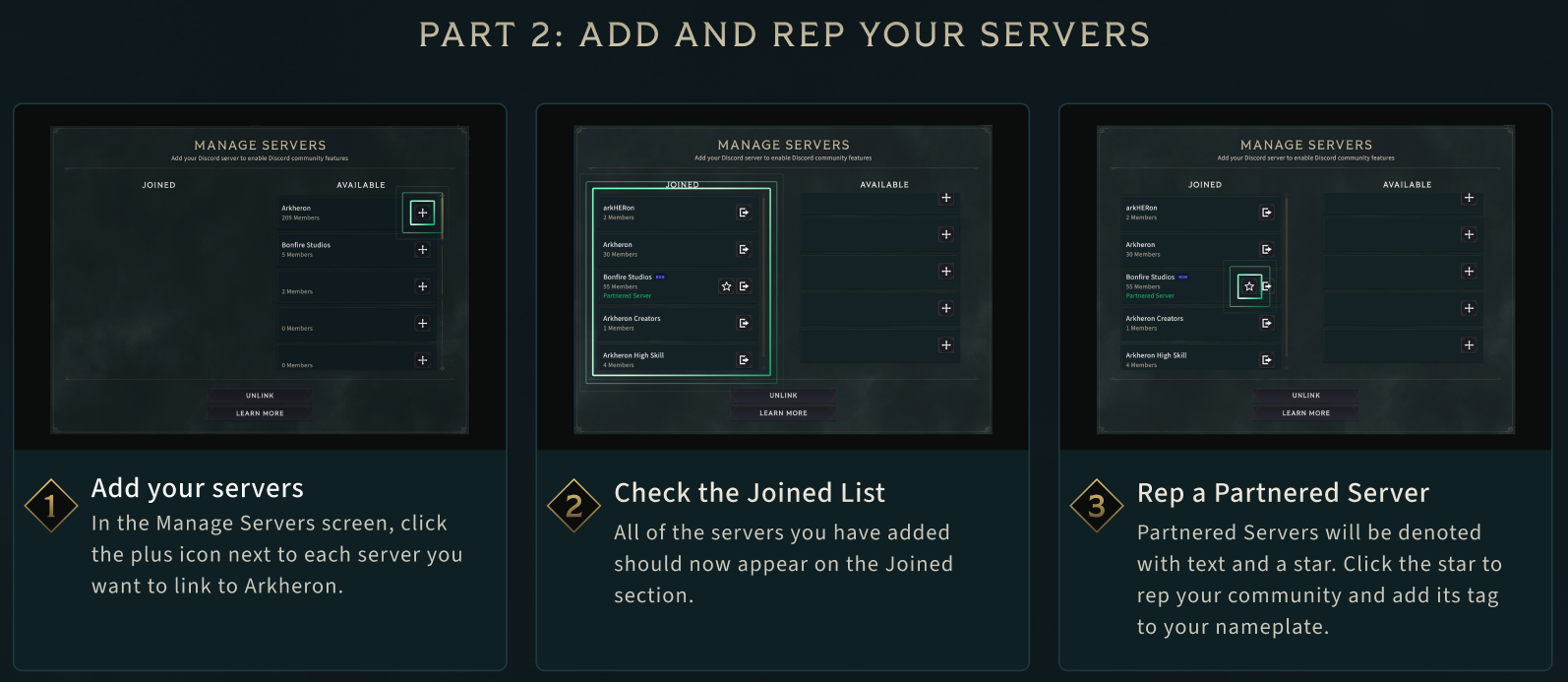
Add your servers. In Manage Servers, select the plus icon next to each server you want to be connected to Arkheron.
Check the Joined list. The servers you’ve selected appear under Joined.
Rep a Partner Server. Partner Servers have a label and a star. Select the star to rep that community.
When you rep a Partner Server, its tag appears alongside your name in matches. Your teammates know who you’re with, and so does the team you just beat. When you need teammates, matchmaking will try to pair you with players of similar skill repping the same server.
You can belong to multiple Partner Servers, but only rep one at a time. Repping a participating server also enables free access during Partner Server Free Play Week.
We’re also planning competitions between Partner Servers, with bragging rights and in-game cosmetic rewards for the winners. Your favorite creator might be convinced their community has the better players. You’ll have a chance to compete alongside other members and help prove it (and potentially earn some prizes for you and the rest of the community!). We’ll share more about the competitions soon.
Find a party from one of your servers
Once you’ve added your communities, you can open your party to other members or find a party to join.
To open your party:
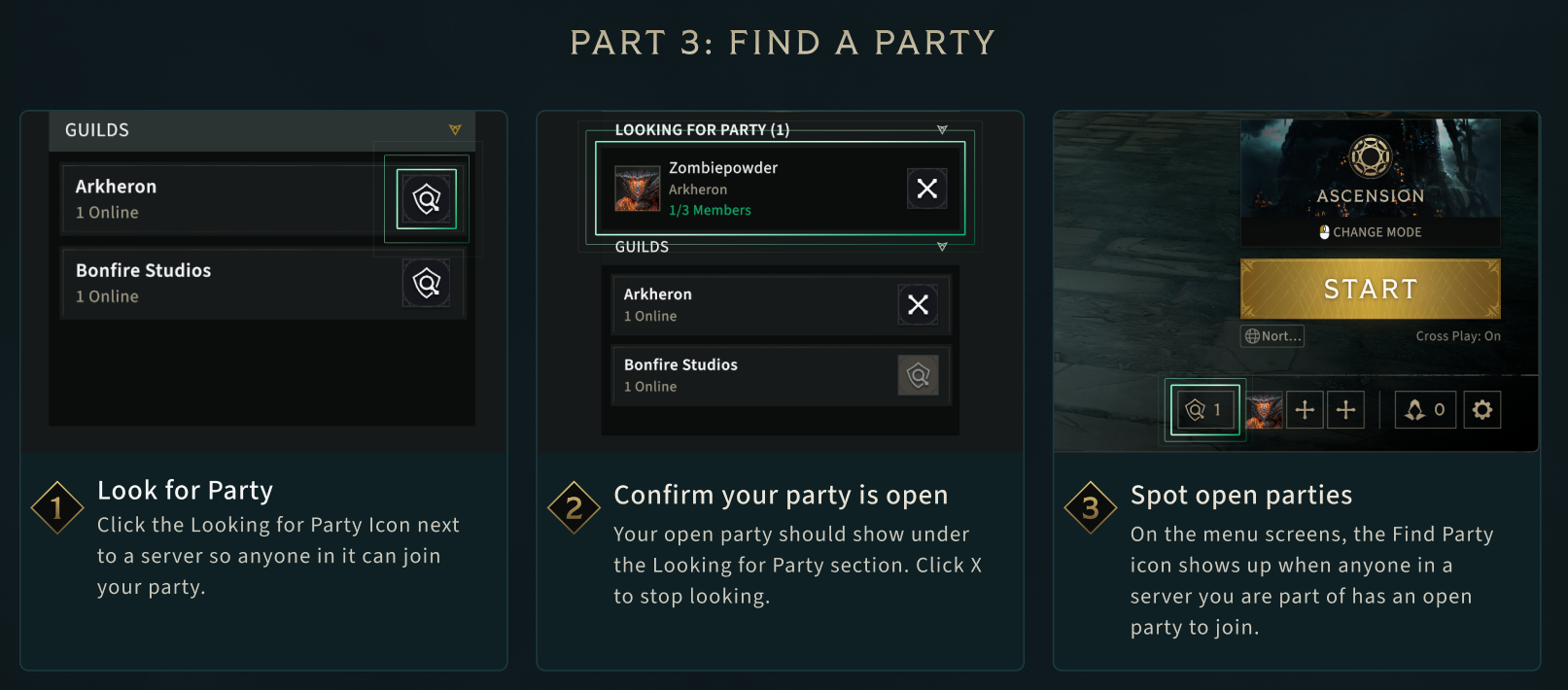
Click Looking for Party. In your server list, click the Looking for Party icon next to a server. Anyone in that server can now join you.
Confirm your party is open. Your party appears in the Looking for Party section. Click the X whenever you want to stop.
To join an open party:
Check the social panel for open parties from your connected communities. The Find Party indicator on the main menu also lets you know when a party is available. Open it to see parties you can join.
You can find parties across multiple communities but can only advertise your own party to one community at a time. These features work on Steam, PlayStation 5, and XBOX Series X|S, with crossplay so you can team up across platforms.
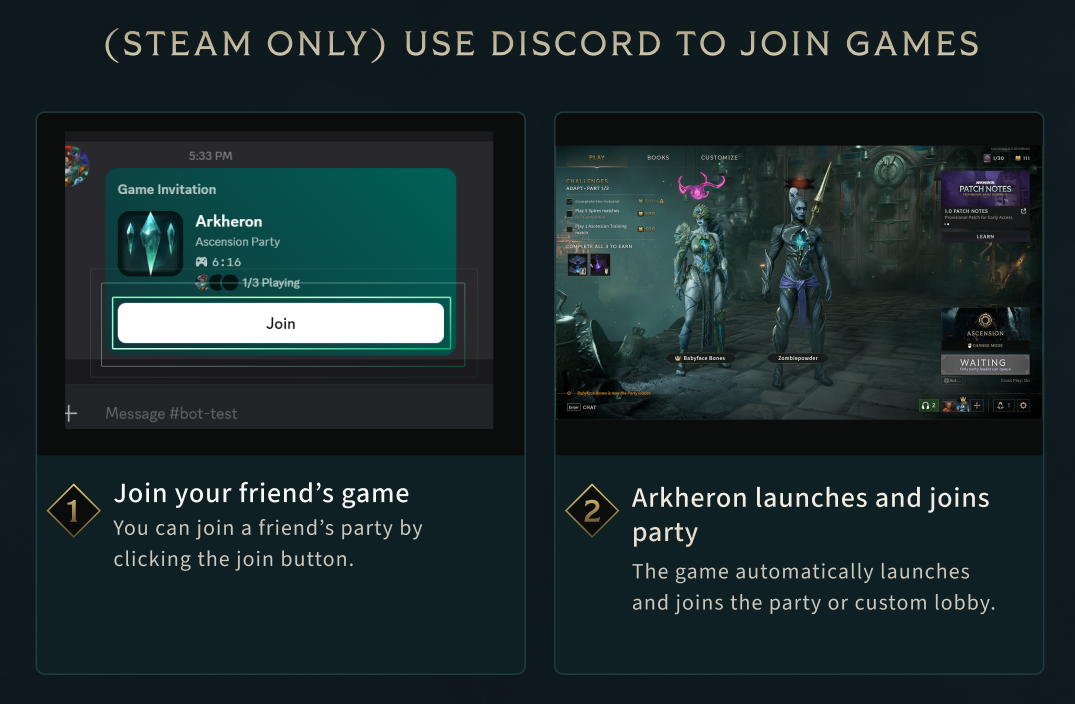
Playing on Steam? You can get a party together from Discord, too. With Discord activity sharing enabled, friends can join your party or custom lobby from your profile. You can also post a game invite directly into a Discord channel. Accepting an invite launches Arkheron if it isn’t already running and brings the player into your party or lobby.
Get a party together from Discord
Steam players can also invite people and join parties directly from Discord. You can keep hanging out in your community’s channels while everyone gets together.
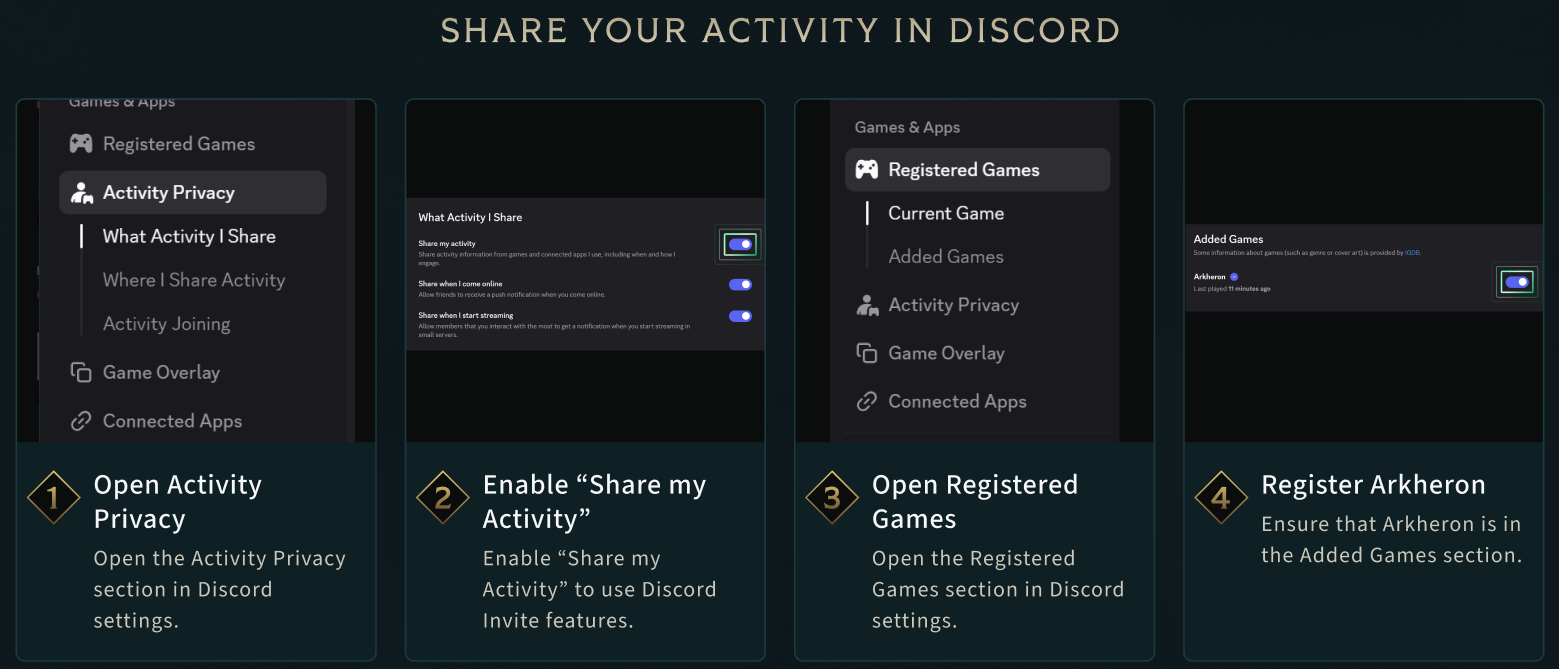
Enable activity sharing with the Discord desktop app running:
Open Discord’s Settings → Activity Privacy.
Turn on Share my activity.
Check Registered Games to make sure Arkheron is listed under Added Games.
Invite your community
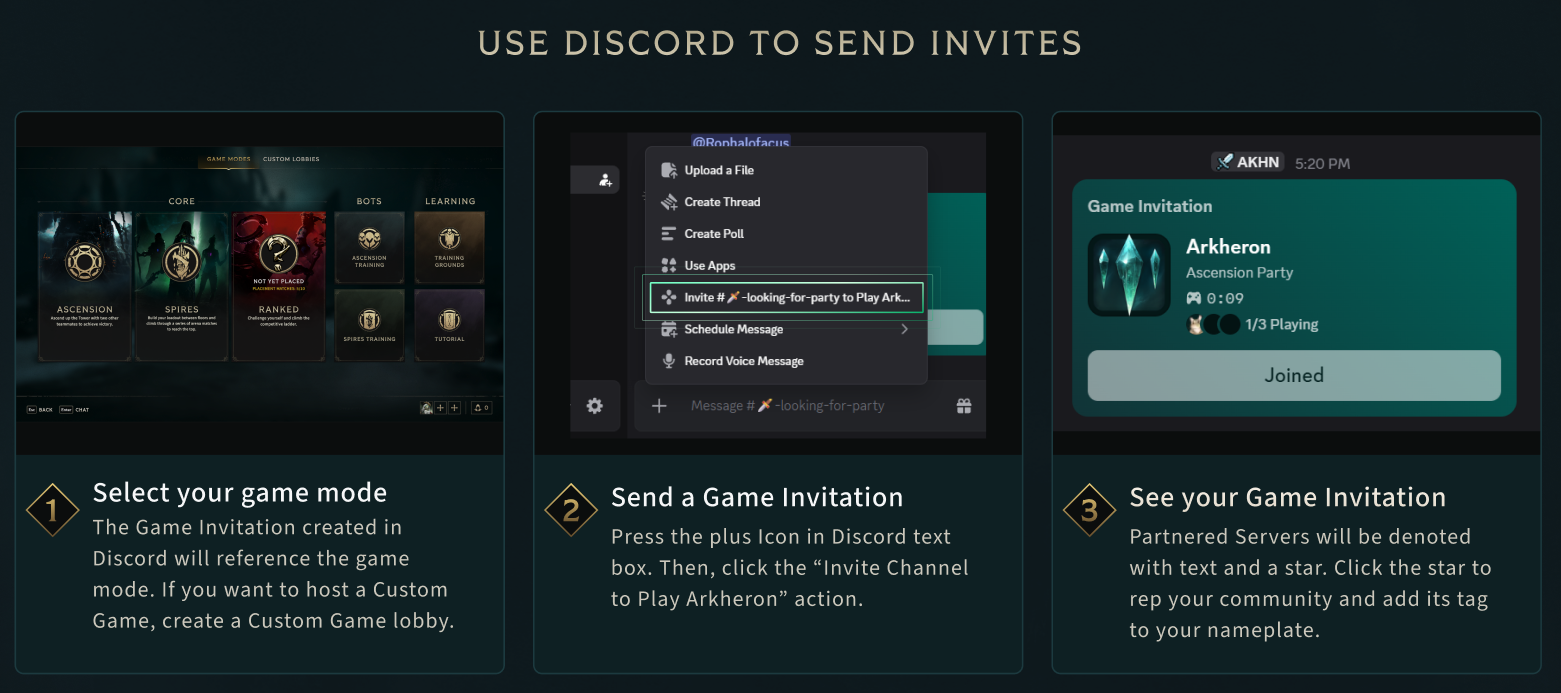
Choose your game mode in Arkheron, or create a Custom Game lobby.
Open the Discord channel where you want to invite people.
Select the plus icon beside the message box, then choose Invite Channel to Play Arkheron.
Post the invitation. The card shows what you’re playing and how many spots are filled.
Other Steam players can select Join on the invitation to enter your party or custom lobby. If Arkheron isn’t running, accepting the invitation launches the game and brings them in. Friends can also join through your Discord profile when your party is available
Partner Server Free Play Week: November 30 - December 6
Opening Weekend is free for everyone from November 27 - 29. Afterward, you can keep playing free through December 6 by repping a participating Partner Server.
To join in:
Download the free Friend Pass Edition.
Join a participating Partner Server on Discord using a link above.
Connect your Discord account to Arkheron and add that server.
Rep the server by selecting its star in Manage Servers.
An update to our previous announcement: You now need to rep a participating Partner Server in-game to activate free access. We previously said Discord membership alone would qualify.
While repping a participating server during Free Play Week, you can play Ascension, Spires, and Custom Games without needing someone who owns Arkheron in your party. Queue on your own or team up with other players.
After December 6, regular Friend Pass access resumes. You can keep playing the Tutorial and Training modes on your own, and party up with someone who owns Arkheron to play Ascension, Spires, and Custom Games. Your connected communities and party-finding tools will still be there to help you find people to play with.
Pick a community, bring your friends, and we’ll see you in the Tower.